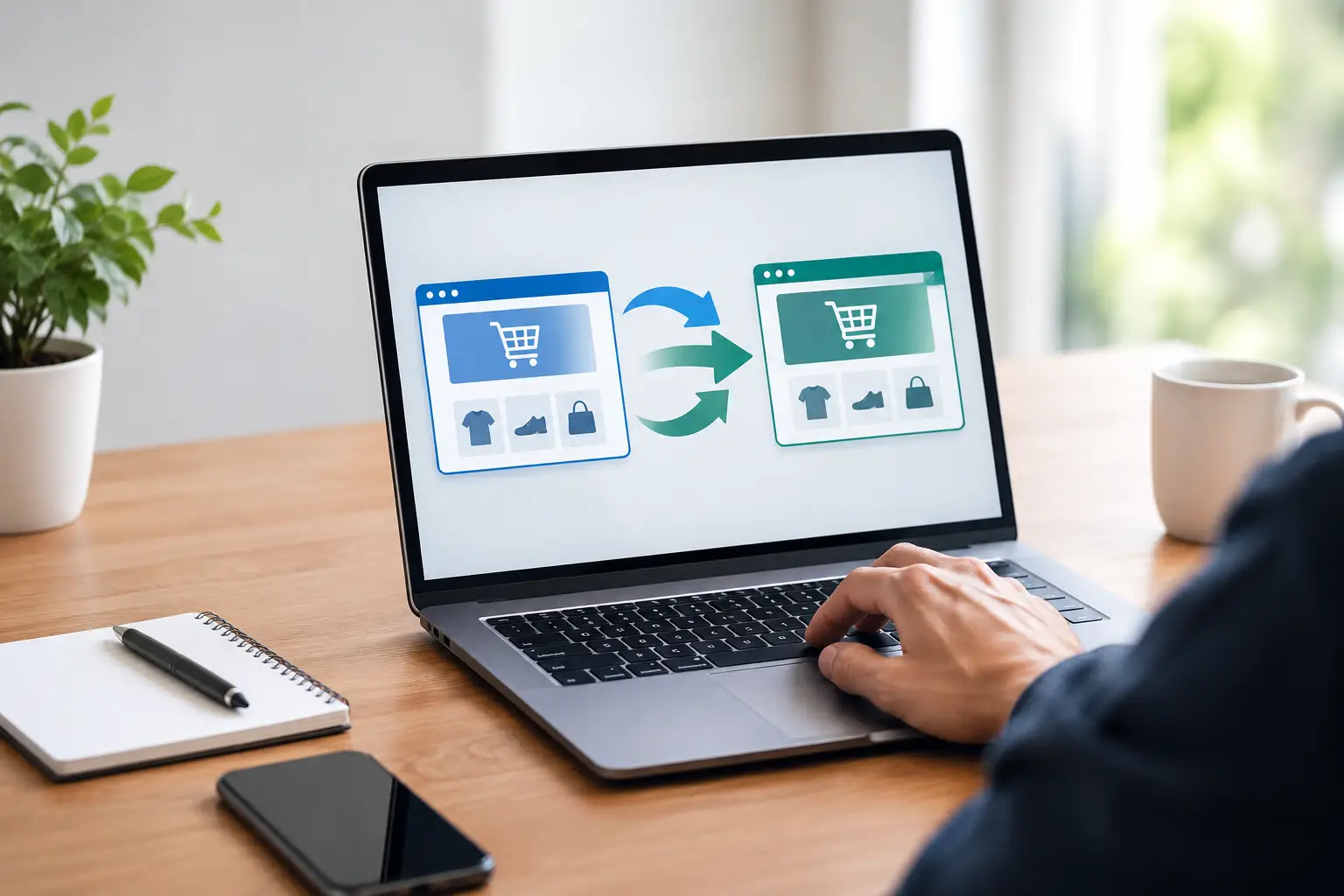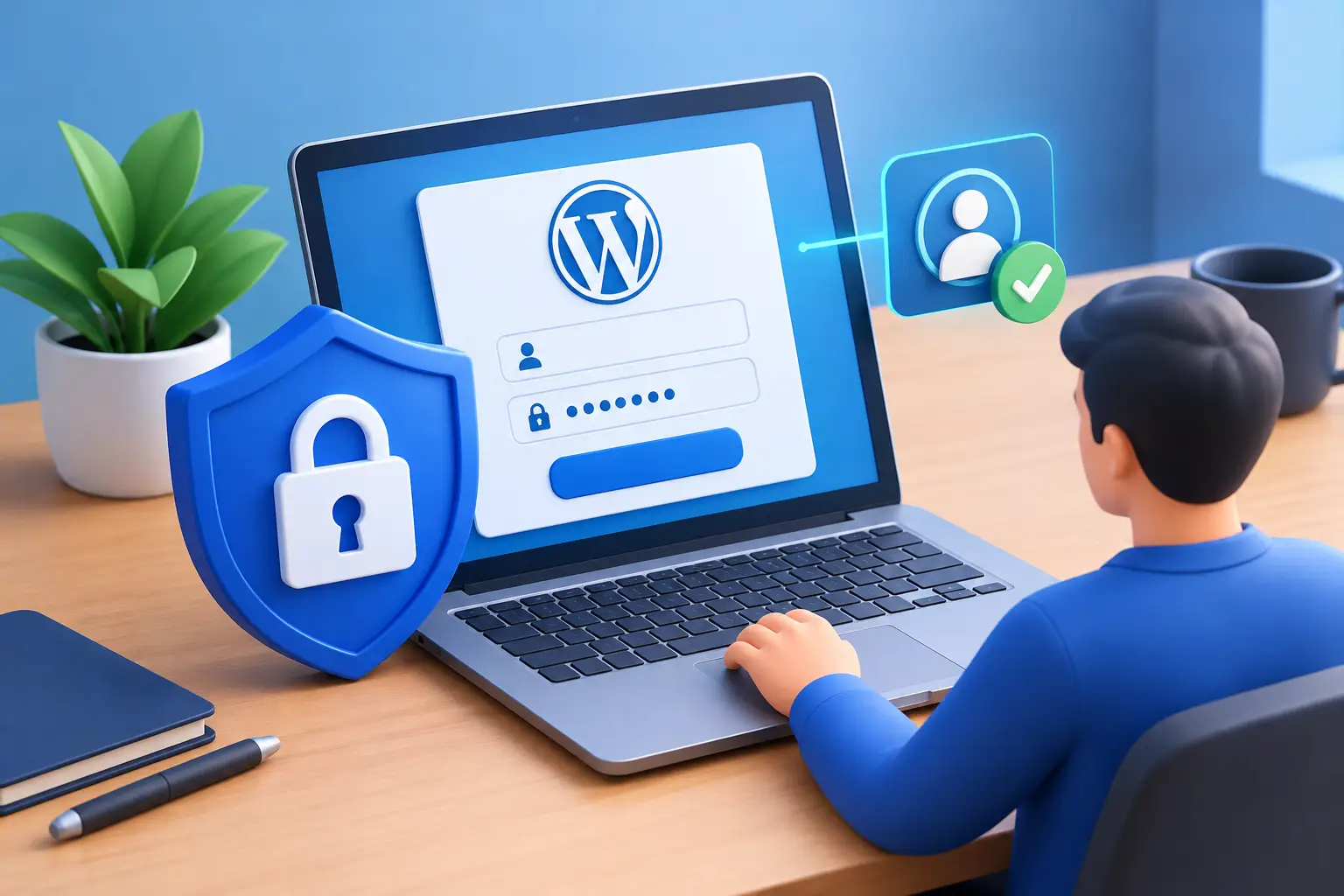
A compromised administrator login is not a minor website issue. For a WooCommerce store, it can mean changed payout details, fraudulent orders, customer data exposure, or a checkout page replaced while your team is asleep. For a service business, it can mean spam leads, damaged search visibility, and an expensive cleanup. A secure WordPress admin setup protects the part of your website that controls revenue, content, users, and integrations.
The good news is that most WordPress admin incidents are preventable. They usually come from reused passwords, unnecessary administrator accounts, outdated plugins, weak hosting controls, or a lack of monitoring. The right approach is not one security plugin. It is a clear set of access rules, technical safeguards, and recovery procedures that fit how your business actually operates.
Secure WordPress Admin Access Starts With Fewer Accounts
Every administrator account is a potential entry point. Many businesses create an admin login for a designer, developer, marketing contractor, former employee, or plugin vendor, then leave it active indefinitely. That creates risk without adding operational value.
Start by reviewing every WordPress user account. Remove accounts that no longer belong to an active person or business function. Do not share one generic login across a team. Shared accounts make it impossible to see who changed a product price, installed a plugin, or edited a payment setting.
Give each person the lowest role they need. A content editor rarely needs access to plugins, themes, customer data, or WooCommerce payment settings. A store manager may need to process orders and issue refunds, but not install code or create new administrators. WordPress roles are useful, but WooCommerce permissions and custom role settings may need further refinement for larger teams.
This is one of the simplest controls to maintain: when someone changes role or leaves the company, update or remove their access on the same day. Treat website access like access to your bank account, email system, or accounting software.
Use Separate Accounts for Daily Work and Technical Changes
Website owners often use an administrator account for every task because it is convenient. The trade-off is that a compromised browser session, password, or laptop has complete control over the site.
Use a lower-permission account for routine content updates, order work, and product management. Reserve administrator access for software updates, plugin configuration, user management, and technical changes. This adds a small amount of friction, but it limits the damage when a standard account is exposed.
For agencies and technical support partners, create named accounts with a defined purpose and remove them when the engagement ends. A dependable provider should not require permanent, anonymous full-admin access to your business website.
Make Login Theft Much Harder
Strong passwords remain necessary, but passwords alone are not enough. Credential stuffing attacks use passwords leaked from unrelated services. If a team member reused a password, an attacker may be able to test it automatically against WordPress login pages.
Require long, unique passwords generated and stored in a password manager. Avoid passwords based on business names, product lines, birthdays, or predictable substitutions. The goal is not to create something memorable. The goal is to create something difficult to guess and easy to manage safely.
Add multi-factor authentication for all administrator accounts, and ideally for store managers and editors with access to sensitive data. An authenticator app is generally stronger than SMS because phone numbers can be hijacked through SIM-swapping attacks. Keep recovery codes in a secure business password vault, not in an unprotected document or someone’s personal inbox.
You can also reduce automated login attempts with rate limiting, temporary lockouts, and CAPTCHA where appropriate. These controls are useful, but they should support multi-factor authentication rather than replace it. A locked-down login page does not help if an attacker already has a valid password and no second factor is required.
Protect the Hosting and Email Accounts Too
WordPress security does not stop at wp-admin. Anyone with access to your hosting panel, domain registrar, or primary business email can often reset WordPress credentials or redirect traffic elsewhere.
Use multi-factor authentication on hosting, domain, email, payment gateway, and cloud storage accounts. Limit access to the people responsible for each system. Confirm that domain renewal notifications go to a monitored business inbox, not an ex-employee’s email address.
For e-commerce operators, this matters because an attacker who controls your domain can create a more damaging outage than an attacker who only controls one WordPress account.
Keep the WordPress Stack Maintained
Outdated software is one of the most common causes of WordPress compromises. Core WordPress, themes, plugins, PHP versions, and server software all receive security fixes. Delaying updates for months turns known issues into easy targets.
That does not mean clicking Update on everything during a busy sales period. Updates can conflict with custom checkout logic, payment gateways, page builders, or inventory integrations. The practical answer is a managed maintenance process: test meaningful updates on a staging site, take a backup, deploy during a sensible window, and check key website functions afterward.
For a WooCommerce store, those checks should include product pages, cart behavior, checkout, payment confirmation emails, customer login, and order creation. For a lead-generation site, test forms, confirmation emails, booking integrations, and tracking scripts. Security updates that silently break sales or lead capture are not a successful outcome.
Remove plugins and themes you do not use. Inactive plugins can still contain vulnerabilities, and abandoned plugins create a long-term maintenance problem. Before installing a new tool, ask whether it solves a real operational need, whether it is actively maintained, and whether its function could be handled by existing infrastructure.
Secure WordPress Admin Through Hosting Controls
Your hosting environment determines how well your website can withstand attacks, recover from mistakes, and isolate problems. Cheap shared hosting may be sufficient for a simple early-stage site, but it can be a poor fit for a growing store with customer accounts, payment workflows, and revenue depending on availability.
A properly configured setup should use HTTPS everywhere, a current supported PHP version, server-level firewall protection, malware scanning, and regular backups stored away from the live server. A web application firewall can block many common malicious requests before they reach WordPress. A CDN can also absorb basic traffic spikes and reduce exposure to direct attacks.
Backups need more than a reassuring dashboard message. They should run on a defined schedule, include both website files and the database, retain enough restore points, and be tested periodically. A backup that cannot restore product data, recent orders, or site settings is not a recovery plan.
For stores with frequent orders, daily backups may not be enough. The right frequency depends on how much data your business can afford to lose. If losing six hours of orders would create reconciliation problems, use more frequent database backups and confirm how restoration would work in practice.
Monitor Changes Before They Become Expensive
Security monitoring is what turns an incident from a multi-day problem into a quick correction. Keep an activity log for administrator logins, password resets, plugin installations, user role changes, content updates, and WooCommerce configuration changes. If payment settings change unexpectedly, you should know who made the change and when.
Set alerts for suspicious activity, repeated failed login attempts, new administrator accounts, malware detections, and downtime. Do not send these alerts to one person only. Use a monitored team inbox or ticketing process so that an absence does not become an outage.
It is also worth checking your site from the customer perspective after major updates. A technically healthy server is not enough if the checkout fails, contact forms stop sending, or users cannot reset their passwords.
Have an Incident Plan Before You Need One
When something looks wrong, speed and order matter. Decide who can take the site into maintenance mode, who contacts the host, who checks payment and email accounts, and who communicates with customers if personal data may be affected. Keep the relevant account details and recovery procedures in a secure, shared location.
If you suspect a compromise, do not simply change one password and move on. Remove unauthorized accounts, rotate all related credentials, scan files and the database, review recent changes, update vulnerable software, and restore from a clean backup if needed. For an online store, review orders, payment settings, shipping rules, and customer notifications before reopening normal operations.
A secure WordPress admin area is not about making routine work difficult. It is about ensuring that the people who run your business can keep publishing, selling, and serving customers without one weak login becoming a company-wide disruption. Build the controls into your regular maintenance process, and security becomes a manageable operating cost instead of an emergency project.